Before you start: unzip and pick the right file
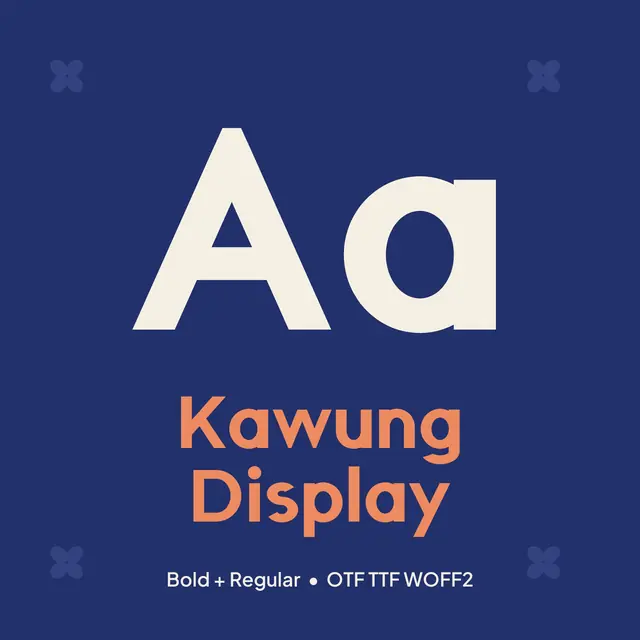
Fonts are usually delivered as a ZIP file. Unzip it first: on Windows, right-click the ZIP and choose Extract All; on a Mac, double-click it. Inside you will often find the same font in several formats:
- OTF (OpenType): the best choice for computers. Use this one if you are unsure.
- TTF (TrueType): also installs on Windows and Mac, and is the format some apps and cutting machines prefer.
- WOFF2: for websites only. You cannot install it on your computer.
Install either the OTF or the TTF files of a family, not both. Two copies of the same font with the same name confuse many apps and can show the wrong letters. A family usually has one file per weight, for example Regular and Bold; install all the weights you want to use.
Install a font on Windows 10 and 11
- Open the unzipped folder and find the .otf files.
- Right-click a font file and choose Install. To install it for every user on the computer, choose Install for all users; this needs administrator rights.
- Repeat for each weight, or select all the files first and right-click once.
Another way: open Settings > Personalization > Fonts and drag the font files onto the area that says drag and drop to install. You can also double-click a font file to see a preview with an Install button at the top.
Close and reopen the app you want to use, such as Word, PowerPoint or Photoshop. Apps read the list of fonts when they start, so a font installed while the app was open will not appear until you restart it.
Install a font on a Mac
- Double-click the .otf file. The Font Book app opens a preview.
- Click Install. Font Book checks the file and adds it to your fonts.
- Repeat for each weight, or select all the files and open them together.
Restart the app you want to use. Microsoft Office on a Mac uses the fonts installed through Font Book, so after a restart the new font appears in Word and PowerPoint too. If Font Book shows a warning about duplicates, choose Resolve duplicates so that only one copy stays active.
Upload a font to Canva
Canva lets you upload your own fonts on Canva Pro, Teams, Education and Nonprofit accounts. A free Canva account cannot upload fonts; you can still use the font in other apps, and make a design such as a logo in another program, then upload it to Canva as an image.
- In Canva, open Brand (the Brand Kit) from the home page.
- Find Brand fonts and click Upload a font.
- Choose the .otf or .ttf file. Canva accepts OTF, TTF and WOFF files.
- Confirm that you have the right to use the font. Upload each weight separately.
The font now appears in the font menu of the editor under uploaded or brand fonts. Canva does not show OpenType stylistic sets, so special alternate letters are not available there; you get the standard letters.
Switch on alternate letters (stylistic sets)
Some fonts include alternate shapes for certain letters, stored as a stylistic set. Our Kawung Display font, for example, has a set called ss01 that puts a small four-petal kawung flower inside the O and o, and petal dots on the i and j. You can see it in the word "fonts" at the top of our home page. To turn a set on:
- Microsoft Word (Windows): select the text, open the Font dialog (Ctrl+D), go to the Advanced tab and choose a number under Stylistic sets.
- Adobe Illustrator and InDesign: open the OpenType panel or the Character panel menu and choose the stylistic set.
- Affinity Designer and Publisher: open the Typography panel and tick the set.
- Figma: select the text, open Type details and switch on the stylistic set under the details tab.
- On a website (CSS):
font-feature-settings: "ss01" 1;
iPad and other tablets
Apps such as Procreate let you import a font directly, usually from an Actions or settings menu with an option to import a font from Files. For use across all apps on an iPad you need a font manager app from the App Store that installs the font as a profile. Instructions differ by app, so check the app's help pages.
The font does not show up: quick fixes
- Restart the app, or restart the computer if a restart of the app is not enough.
- Look for the family name, not the file name. A file called KawungDisplay-Bold.otf appears as Kawung Display with the style Bold.
- On Windows, install for all users. Some older programs only see fonts installed that way.
- Remove duplicates. If you installed both OTF and TTF, uninstall one set.
- Google Docs does not accept uploaded fonts; it only offers its own font list. Use Word, Pages or a design app instead.
- Still broken? Download the ZIP again in case the file was damaged, and write to the seller.
Removing a font
On Windows, open Settings > Personalization > Fonts, click the font and choose Uninstall. On a Mac, select the font in Font Book and press Delete. In Canva, remove it from the Brand Kit.
Respect the license
A font license tells you where you may use the font. Most, including ours, allow you to install the font on your own computers and use it in logos, posts and printed designs, but not to share the font files with other people or put them inside templates you sell. When in doubt, read the license file that comes with the font, or our license summary.